How to fix subtitles that are out
of sync after a re-edit
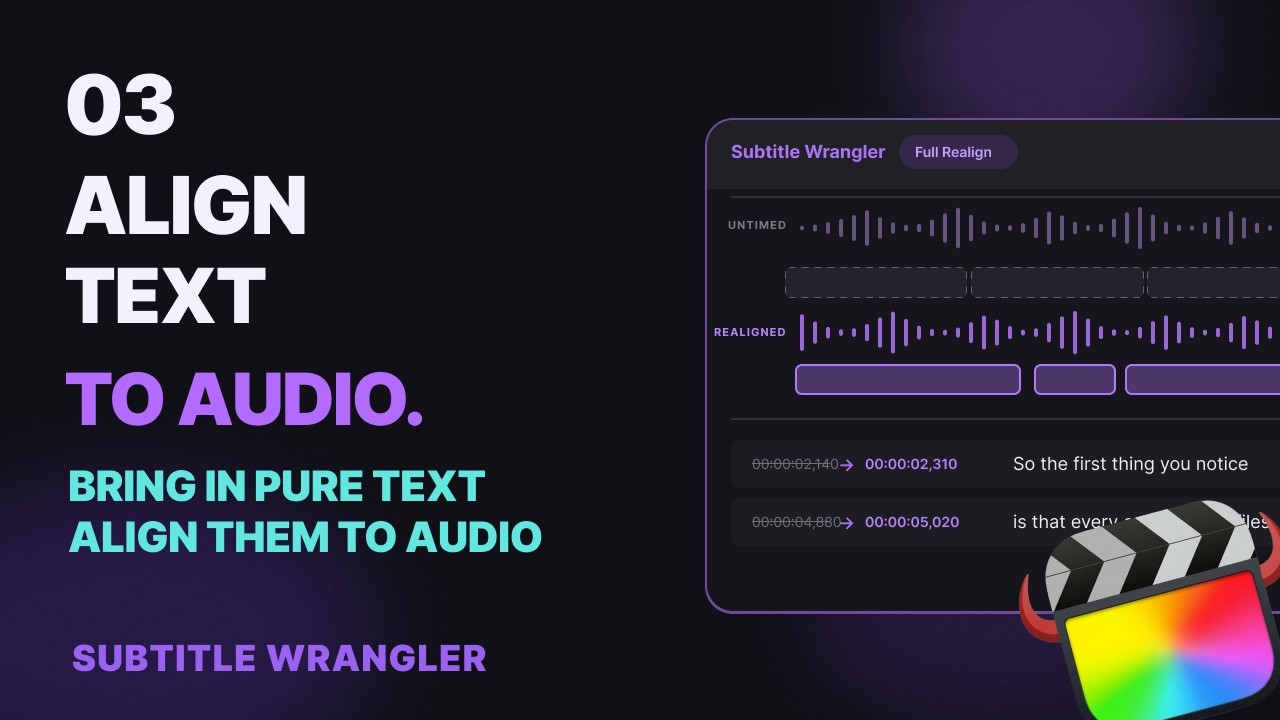
Cut or moved something in Final Cut Pro, and now every subtitle after it is late? Load the new cut in Subtitle Wrangler with your old subtitles and click Full Realign: local AI finds where each line is spoken now. Delete the lines you cut, then send the titles back to Final Cut Pro.
Steps
-
Load the new cut with your old subtitles
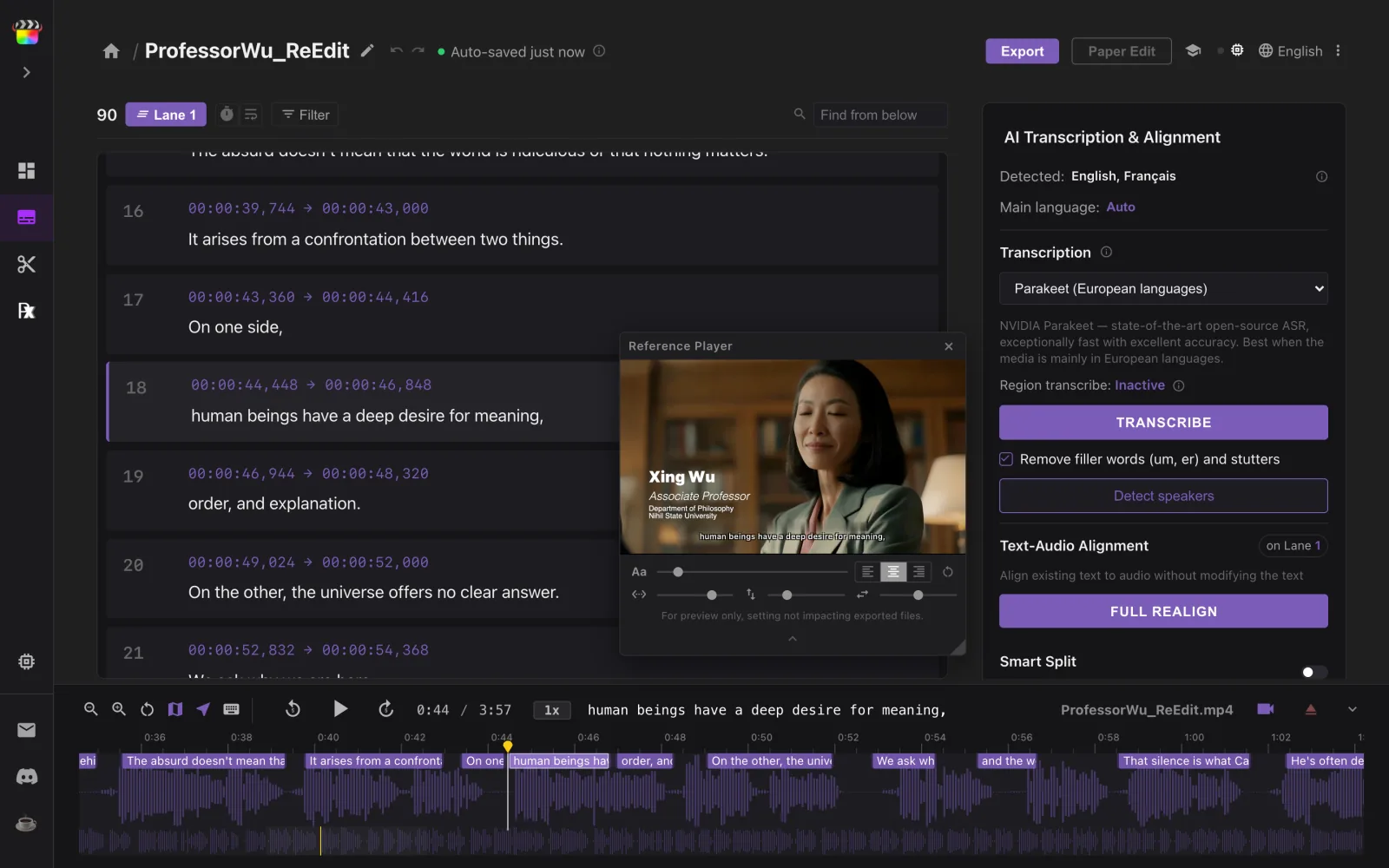
In Final Cut Pro, choose File ▸ Share ▸ Export File and save the re-edited timeline as a video or audio file. In Subtitle Wrangler, click Start New, then Load Media and pick that file, then Import a file and choose your old subtitles — SRT, FCPXML or any format it opens. Every line after the edit now plays at the old time.
-
Click Full Realign
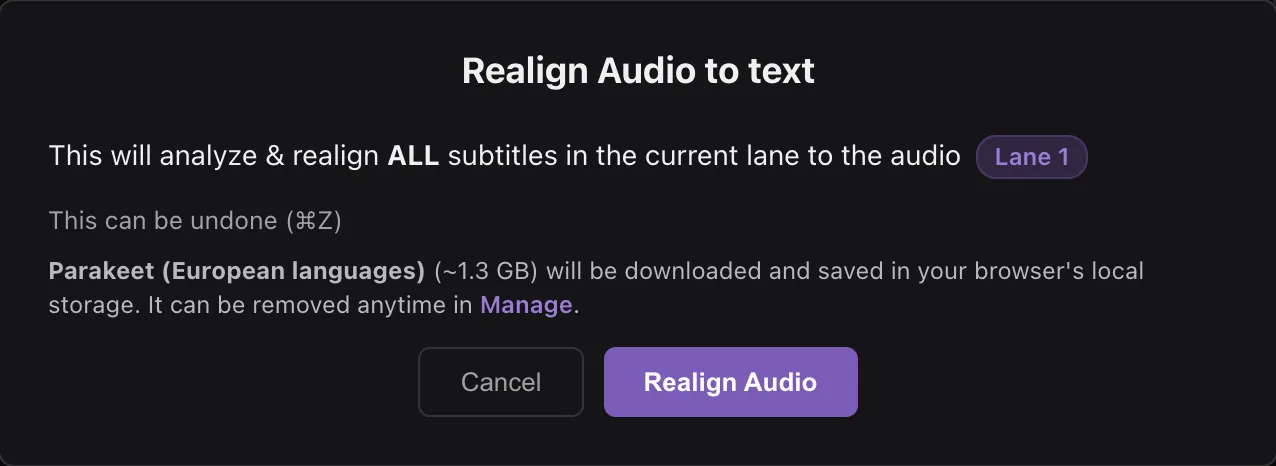
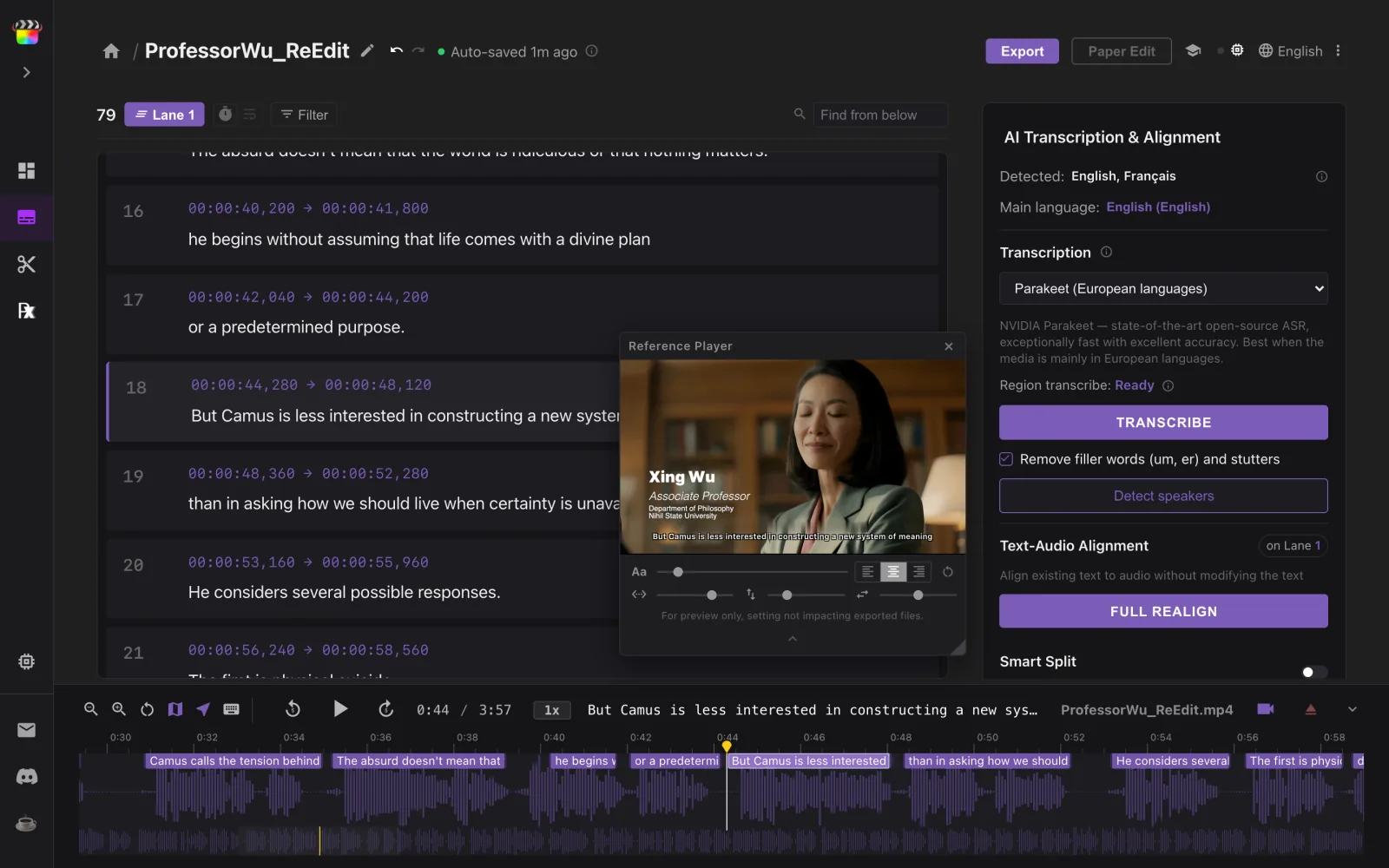
In AI Transcription & Alignment, click Full Realign, then Realign Audio. Local AI listens to the new cut and moves every line to where it is spoken now. Your words never change, and ⌘Z undoes the whole run. On this 4-minute interview it took 18 seconds.
-
Delete the lines you cut
When it finishes, a message says how many lines it matched and how many it estimated — here, “Aligned 72/90 subtitles (18 estimated)”. Lines from the part you removed have nowhere to go: they end up squeezed together at the cut, a few milliseconds each.
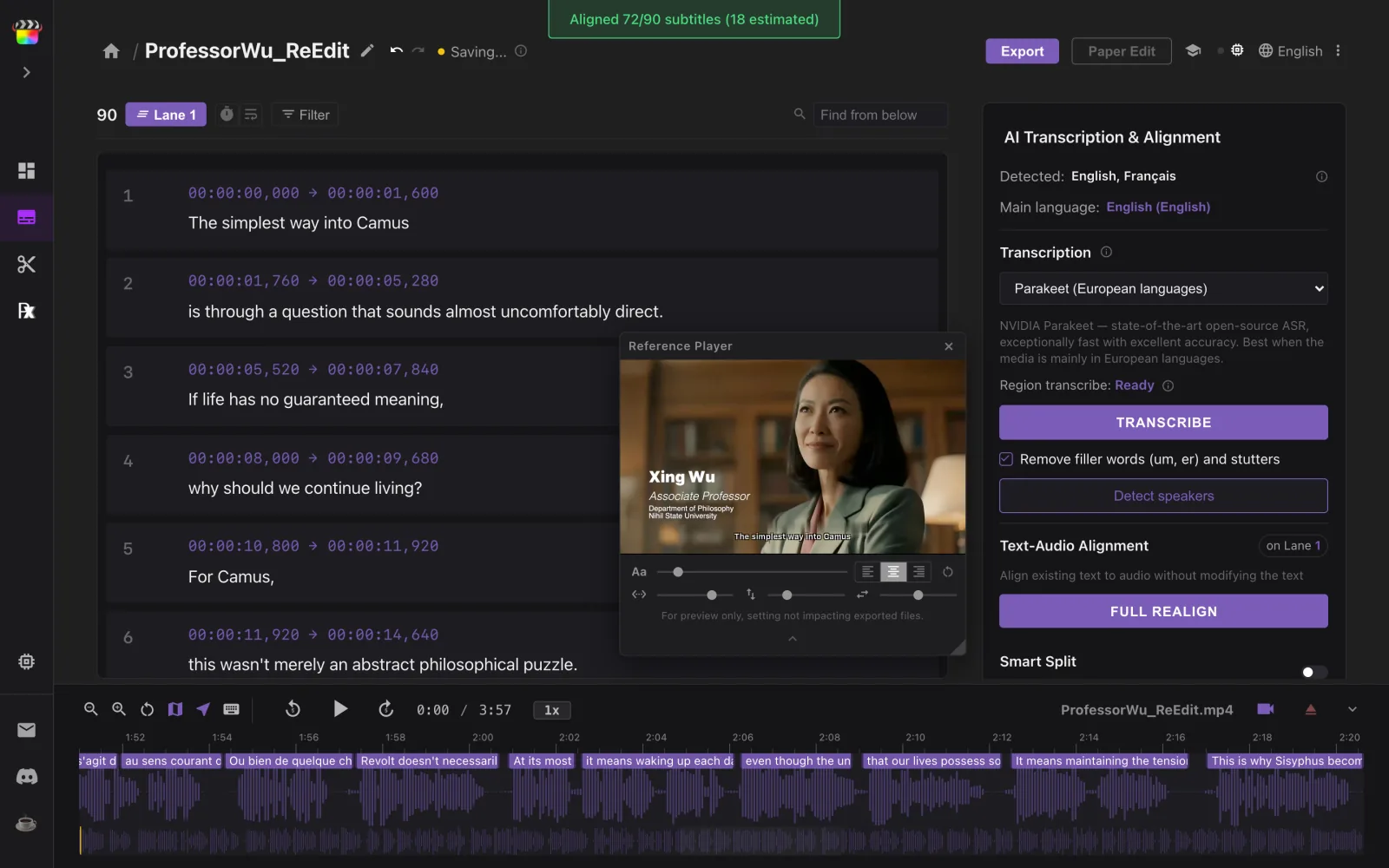
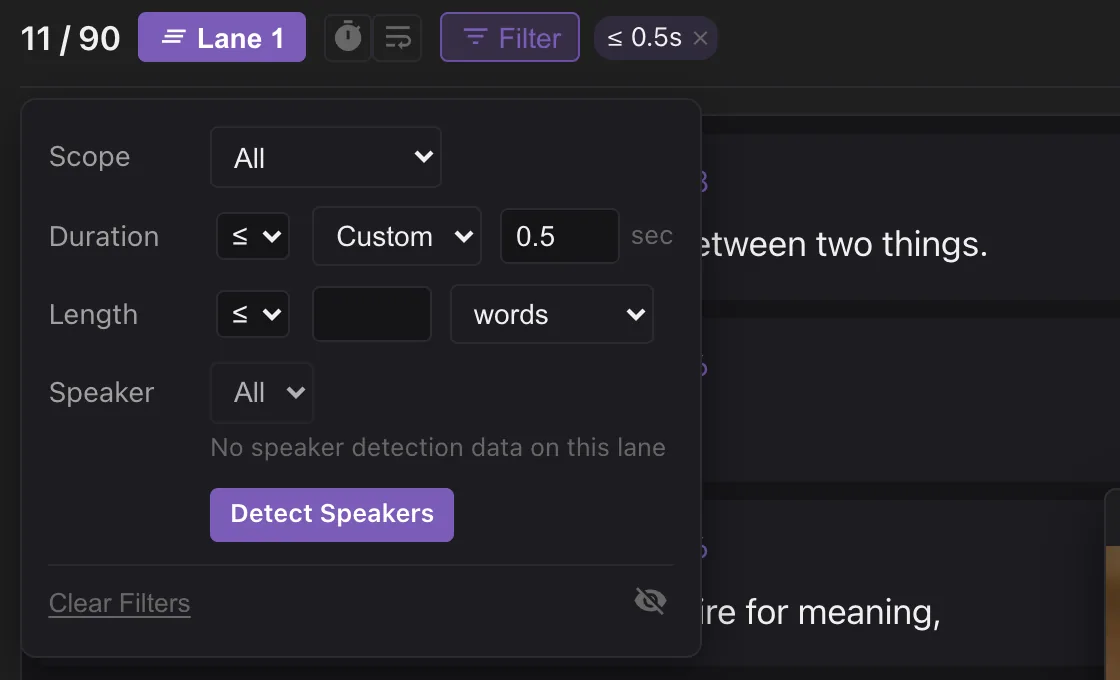
Open Filter and set Duration ≤ Custom 0.5 sec: only those lines are left. Press ⌘A to select them and Delete. Any other estimated line is still in your video — here, the interviewer’s French question — so check its timing by ear.
-
Check it on the waveform
Play across the cut: every line after it now starts where it is spoken. Fix anything left by dragging a block’s edges, or press B to split at any word and ⌘J to join.
-
Send it back to Final Cut Pro
Click Export, set your project’s frame rate and frame size and click .fcpxml (FCP Titles) — or .srt for captions. In Final Cut Pro, choose File ▸ Import ▸ XML…, then select the old title storyline in your project and delete it, then copy the titles from the imported project and paste them at the start of your timeline.
Good to know
Why not just shift the subtitles by hand?
A re-edit moves each section by a different amount: everything after one cut is 30 seconds early, everything after the next is later again. Full Realign measures every line against the audio, so cuts, moved scenes and trims are fixed in one run.
Does it change my words?
No. Full Realign only moves timings; every word stays as it was. ⌘Z undoes the whole run.
What if I added new footage?
New speech has no subtitles yet. Shift-drag over it on the waveform and choose Transcribe to fill just that part.
Does it work with translated subtitles?
Not directly — it needs the text in the language that is spoken. Realign the original-language lane.
Is my video uploaded?
No. The AI runs in your browser, on your computer. Only the model is downloaded, once.