How to split, join and retime
subtitles for Final Cut Pro
Load your video and subtitles in Subtitle Wrangler and fix them the way you cut in Final Cut Pro: press B and click a word to split a line there, ⌘J to join lines, drag a subtitle’s edges on the waveform to retime it. Export .fcpxml titles or SRT when it reads right.

Steps
-
Load your video and subtitles
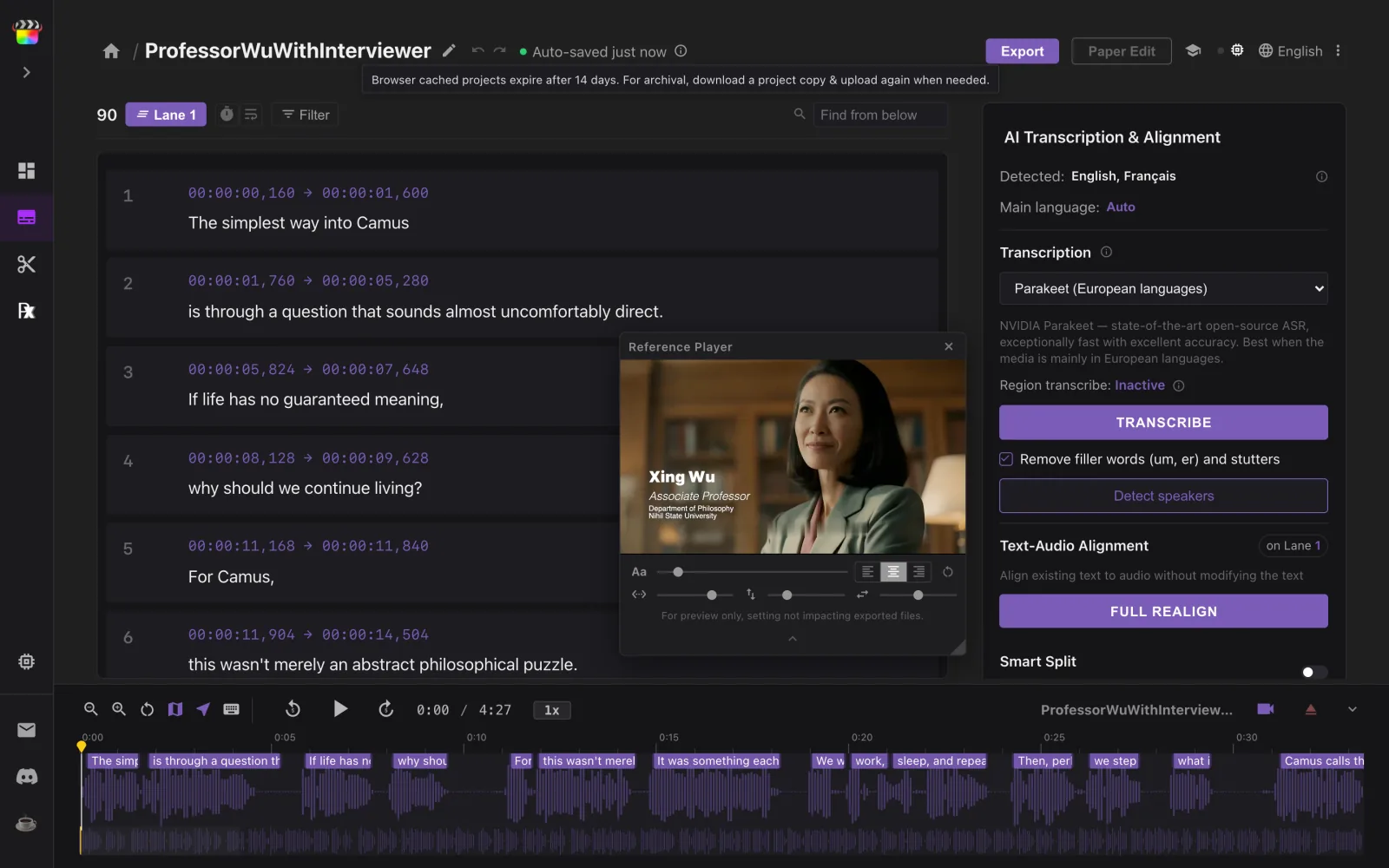
Click Start New, then Load Media and pick your video. Then click Import a file and choose your subtitles — SRT, VTT, ITT, ASS or an .fcpxml from Final Cut Pro. Each subtitle is a row in the list and a block on the waveform, and the Reference Player shows it over your picture.
-
Split a long line at any word
Click a subtitle and press B. Click the gap after the word where the line should break, and it splits right there. Hold Shift to mark several gaps, then click OK to split them all in one undo step.
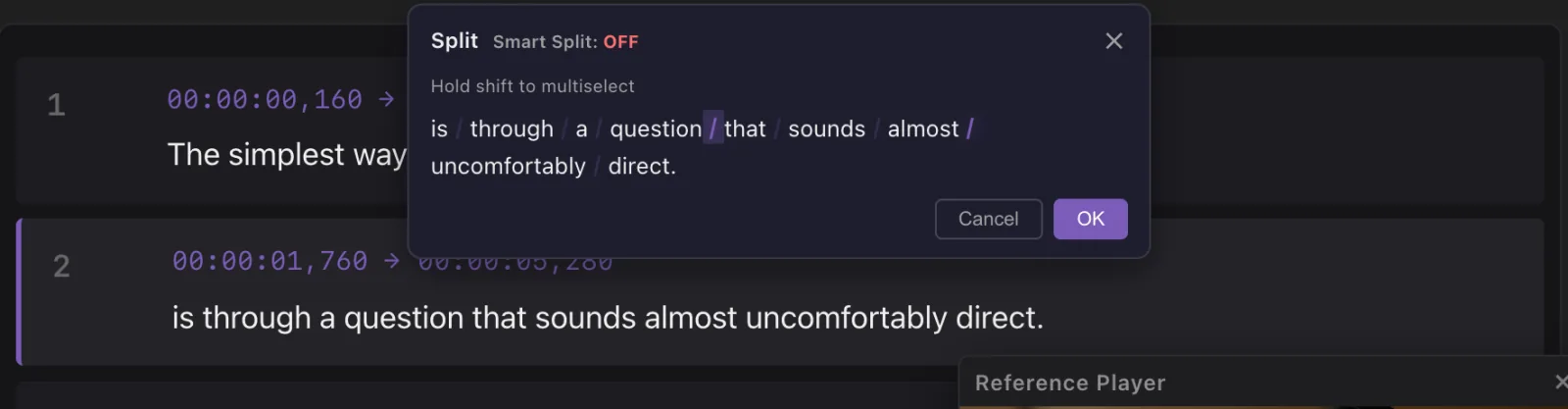
With Smart Split on, each cut lands exactly where that word ends in the audio (one-time ~236 MB download).
-
Join short lines
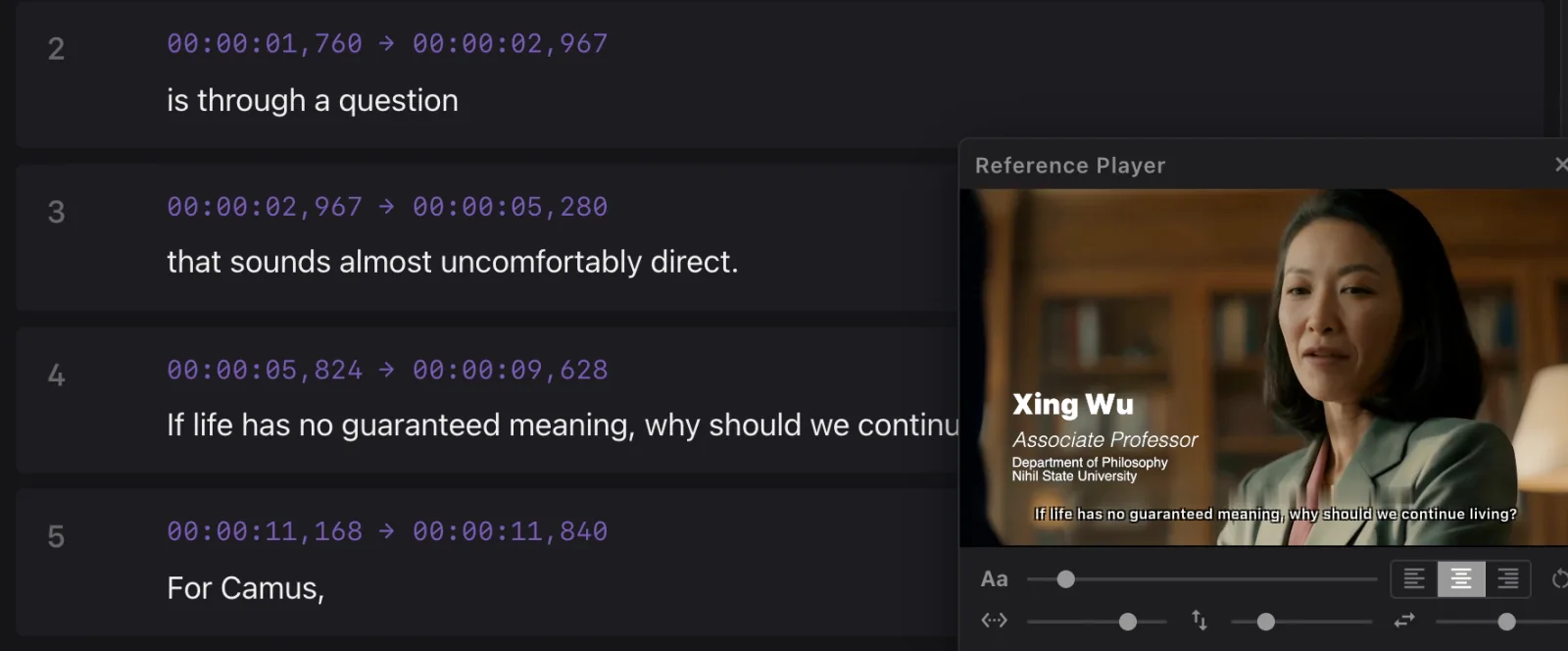
Click the first subtitle, Shift-click the last, and press ⌘J. Press ⇧B instead to join them and pick a new break in the same move.
-
Retime on the waveform
Drag a block’s left or right edge to where the speech starts or ends, or drag the whole block to move it. Play it back: the Reference Player shows each line over your picture, the way it will read. Subtitle Wrangler is built for this step.

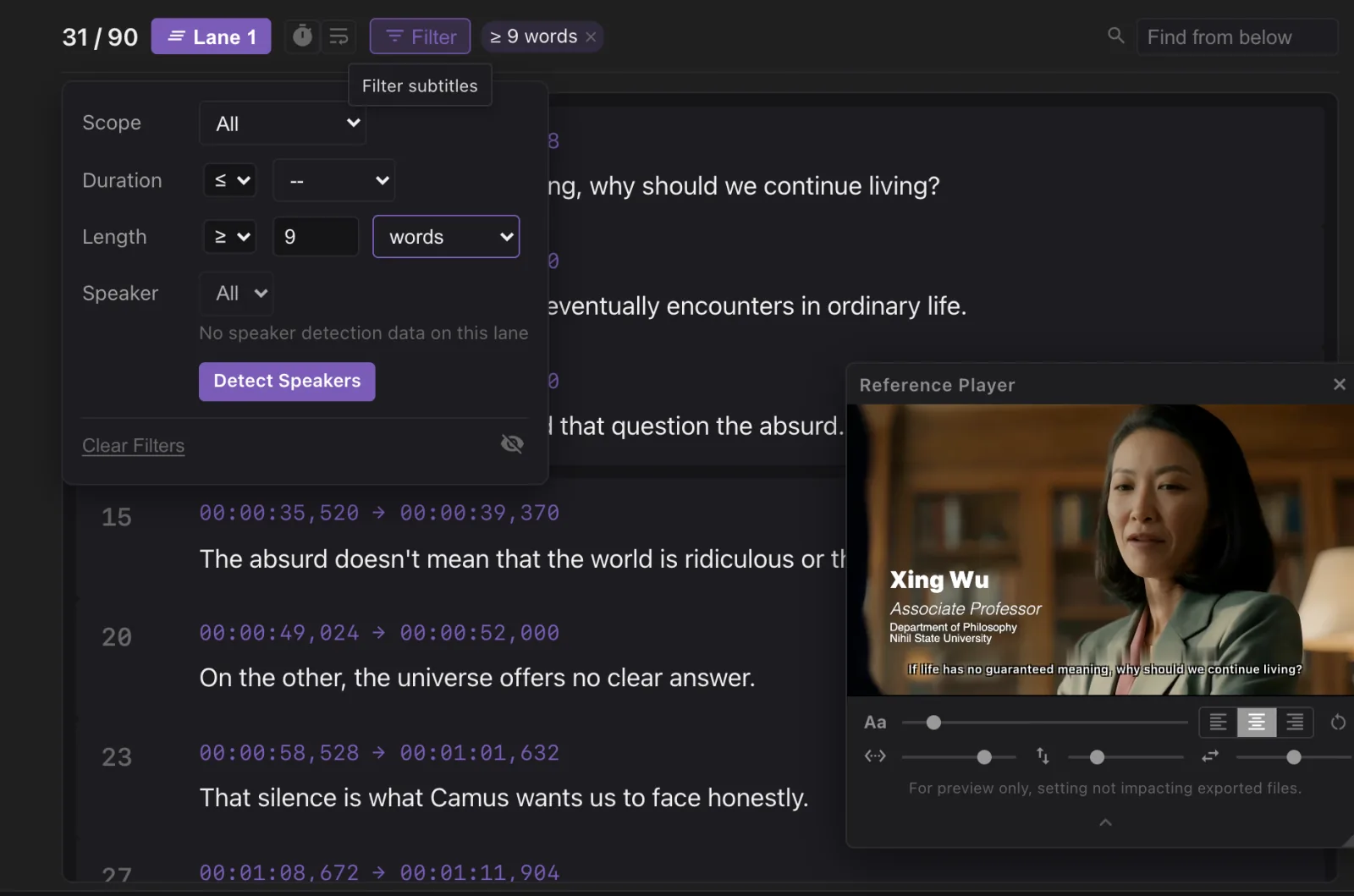
Hunting for problem lines? Filter shows only the subtitles you need — longer than 9 words, shorter than a second, or one speaker — and dims the rest on the waveform.
-
Export for Final Cut Pro
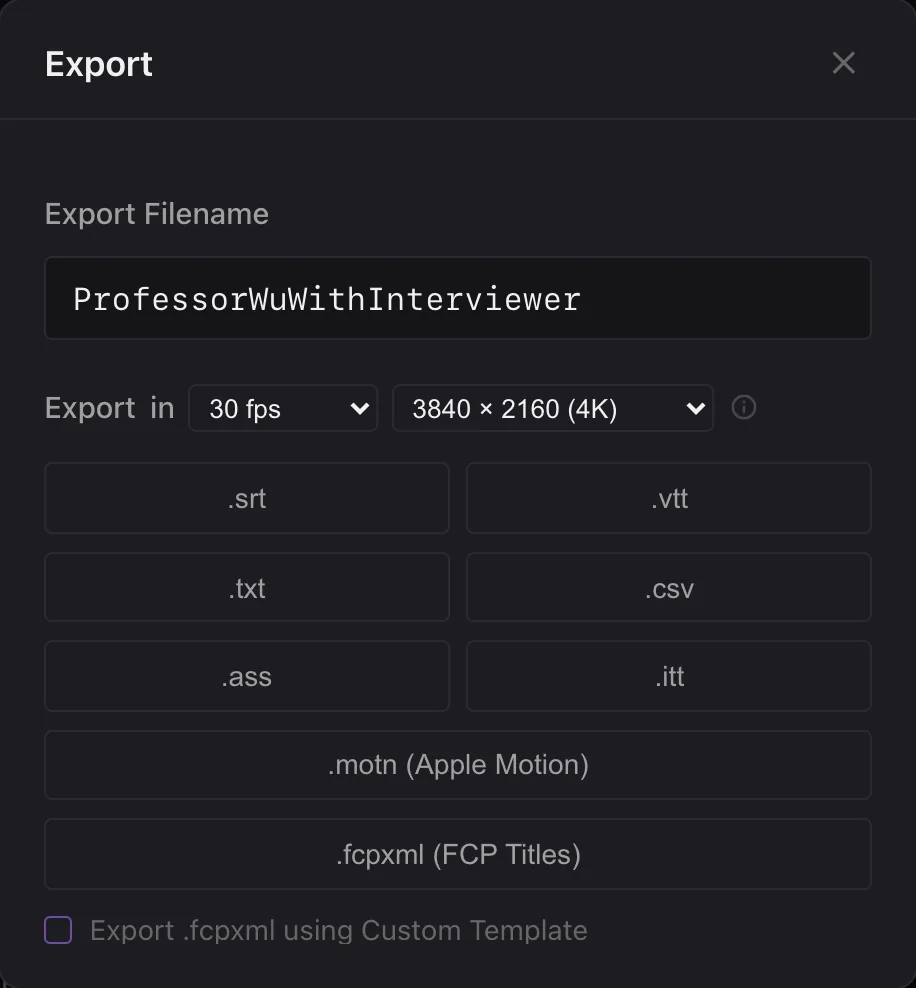
Click Export, set your project’s frame rate and frame size and click .fcpxml (FCP Titles) — or .srt, .vtt, .itt and the rest. In Final Cut Pro, choose File ▸ Import ▸ XML….
Good to know
Why edit subtitles here instead of in Final Cut Pro?
In Final Cut Pro every subtitle is a clip you move one at a time. Here the whole transcript is a list and a waveform: split, join and retime with one key each, filter to the lines that need work, and ⌘Z undoes any step. Then it all goes back in one import.
Do the shortcuts match Final Cut Pro?
Close to it. B splits, like the Blade — except you pick the word instead of the frame. ⌘J joins and ⌘Z undoes.
Which formats can I open and save?
Open SRT, VTT, ITT, ASS, TXT and FCPXML. Save SRT, VTT, ITT, ASS, TXT, CSV, Apple Motion and FCPXML titles.
Can I work on two languages at once?
Yes. Put each language on its own lane, switch lanes to edit, and export them together or one at a time.
Is my video uploaded?
No. Everything runs in your browser, on your computer. Nothing is sent anywhere.